
11 KiB
lab
| lab | ||||
|---|---|---|---|---|
|
Lab 04 - Implement Virtual Networking
Student lab manual
Exercise scenario
Your global organization plans to implement virtual networks. These networks will be in East US, West Europe, and Southeast Asia. The immediate goal is to accomodate all the existing resources. However, the organization is in a growth phase and wants to ensure there is additional capacity for the growth.
Note: An interactive lab simulation is available that allows you to click through this lab at your own pace. You may find slight differences between the interactive simulation and the hosted lab, but the core concepts and ideas being demonstrated are the same.
Estimated time: 20 minutes
The CoreServicesVnet virtual network is deployed in the East US region. This virtual network will have the largest number of resources. It will have connectivity to on-premises networks through a VPN connection. This network will have web services, databases, and other systems that are key to the operations of the business. Shared services, such as domain controllers and DNS also will be located here. A large amount of growth is anticipated, so a large address space is necessary for this virtual network.
The ManufacturingVnet virtual network is deployed in the West Europe region, near the location of your organization's manufacturing facilities. This virtual network will contain systems for the operations of the manufacturing facilities. The organization is anticipating a large number of internal connected devices for their systems to retrieve data from, such as temperature, and will need an IP address space that it can expand into.
The ResearchVnet virtual network is deployed in the Southeast Asia region, near the location of the organization's research and development team. The research and development team uses this virtual network. The team has a small, stable set of resources that is not expected to grow. The team needs a small number of IP addresses for a few virtual machines for their work.

You will create the following resources:
| Virtual Network | Region | Virtual network address space | Subnet | Subnet |
|---|---|---|---|---|
| CoreServicesVnet | East US | 10.20.0.0/16 | ||
| GatewaySubnet | 10.20.0.0/27 | |||
| SharedServicesSubnet | 10.20.10.0/24 | |||
| DatabaseSubnet | 10.20.20.0/24 | |||
| PublicWebServiceSubnet | 10.20.30.0/24 | |||
| ManufacturingVnet | West Europe | 10.30.0.0/16 | ||
| ManufacturingSystemSubnet | 10.30.10.0/24 | |||
| SensorSubnet1 | 10.30.20.0/24 | |||
| SensorSubnet2 | 10.30.21.0/24 | |||
| SensorSubnet3 | 10.30.22.0/24 | |||
| ResearchVnet | Southeast Asia | 10.40.0.0/16 | ||
| ResearchSystemSubnet | 10.40.0.0/24 |
These virtual networks and subnets are structured in a way that accommodates existing resources yet allows for the projected growth. Let's create these virtual networks and subnets to lay the foundation for our networking infrastructure.
Did you know?: It is a good practice to avoid overlapping IP address ranges to reduce issues and simplify troubleshooting. Overlapping is a concern across the entire network, whether in the cloud or on-premises. Many organizations design an enterprise-wide IP addressing scheme to avoid overlapping and plan for future growth.
In this exercise, you will:
- Task 1: Create a resource group
- Task 2: Create the CoreServicesVnet virtual network and subnets
- Task 3: Create the ManufacturingVnet virtual network and subnets
- Task 4: Create the ResearchVnet virtual network and subnets
- Task 5: Verify the creation of VNets and Subnets
Task 1: Create a resource group
Create a resource group for all the resources in this lab.
-
Go to the Azure portal.
-
Search for and select Resource groups, then select + Create.
-
Create the resource group with these settings.
| Tab | Option | Value |
|---|---|---|
| Basics | Resource group | az104-rg4 |
| Region | (US) East US | |
| Tags | No changes required | |
| Review + create | Review your settings and select Create |
- Refresh the Resource groups page, and verify that az104-rg4 appears in the list.
Task 2: Create the CoreServicesVnet virtual network and subnets
The organization plans a large amount of growth for core services. In this task, you will create the virtual network and the associated subnets to accomodate the existing resources and planned growth.
Create the CoreServicesVnet virtual network
-
Search for and select Virtual Networks.

-
Select Create on the Virtual networks page.

-
Use the information in the following table to create the CoreServicesVnet virtual network.
| Tab | Option | Value |
|---|---|---|
| Basics | Resource Group | az104-rg1 |
| Name | CoreServicesVnet |
|
| Region | (US) East US | |
| IP Addresses | IPv4 address space | 10.20.0.0/16 |
>**Note:** Remove or overwrite the default IP Address space.

- Create the CoreServicesVnet subnets. To begin creating each subnet, select + Add subnet. To finish creating each subnet, select Add.
| Subnet | Option | Value |
|---|---|---|
| GatewaySubnet | Subnet name | GatewaySubnet |
| Subnet address range | 10.20.0.0/27 |
|
| SharedServicesSubnet | Subnet name | SharedServicesSubnet |
| Subnet address range | 10.20.10.0/24 |
|
| DatabaseSubnet | Subnet name | DatabaseSubnet |
| Subnet address range | 10.20.20.0/24 |
|
| PublicWebServiceSubnet | Subnet name | PublicWebServiceSubnet |
| Subnet address range | 10.20.30.0/24 |
-
To finish creating the CoreServicesVnet and its associated subnets, select Review + create.
-
Verify your configuration passed validation, and then select Create.
Task 3: Create the ManufacturingVnet virtual network and subnets
In this task, you will continue to create an additional virtual network and associated subnets. The organization anticipates growth for the manufacturing offices so the subnets are sized for the expected growth.
>**Note**: If you need help, use the detailed steps in Task 2.
| Tab | Option | Value |
|---|---|---|
| Basics | Resource Group | az104-rg1 |
| Name | ManufacturingVnet |
|
| Region | (Europe) West Europe | |
| IP Addresses | IPv4 address space | 10.30.0.0/16 |
| Subnet | Option | Value |
|---|---|---|
| ManufacturingSystemSubnet | Subnet name | ManufacturingSystemSubnet |
| Subnet address range | 10.30.10.0/24 |
|
| SensorSubnet1 | Subnet name | SensorSubnet1 |
| Subnet address range | 10.30.20.0/24 |
|
| SensorSubnet2 | Subnet name | SensorSubnet2 |
| Subnet address range | 10.30.21.0/24 |
|
| SensorSubnet3 | Subnet name | SensorSubnet3 |
| Subnet address range | 10.30.22.0/24 |
Task 4: Create the ResearchVnet virtual network and subnets
In this task, you will create the final virtual network and associated subnet. The organization does not plan for growth and has limited needs for the research and development offices.
Note
: If you need help, use the detailed steps in Task 2.
| Tab | Option | Value |
|---|---|---|
| Basics | Resource Group | az104-rg1 |
| Name | ResearchVnet |
|
| Region | Southeast Asia | |
| IP Addresses | IPv4 address space | 10.40.0.0/16 |
| Subnet | Option | Value |
|---|---|---|
| ResearchSystemSubnet | Subnet name | ResearchSystemSubnet |
| Subnet address range | 10.40.0.0/24 |
Task 5: Verify the creation of VNets and Subnets
In this task, you will validate that you have all the necessary virtual networks and subnets to meet the organization's requirements.
-
On the Azure portal home page, search for and select All resources.
-
Verify that the CoreServicesVnet, ManufacturingVnet, and ResearchVnet are listed.
-
Select CoreServicesVnet.
-
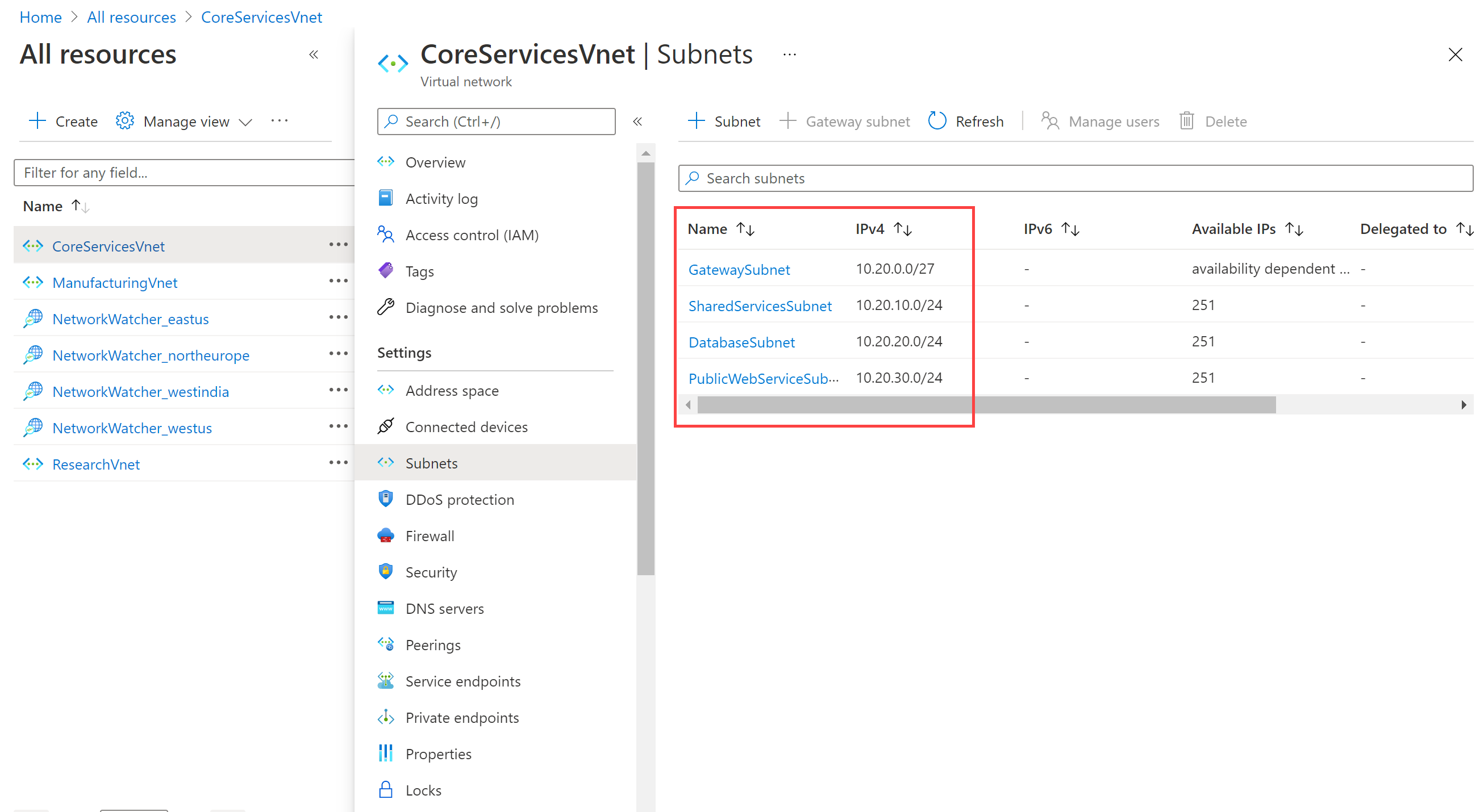
In CoreServicesVnet, under Settings, select Subnets.
-
In CoreServicesVnet | Subnets, verify that the subnets you created are listed, and that the IP address ranges are correct.
-
Repeat steps 3 - 5 for each VNet. Just remember to change the virtual network selection to ensure you verify all of them.
Congratulations! You have successfully created a resource group, three virtual networks, and associated subnets.