
9.9 KiB
lab
| lab | ||||
|---|---|---|---|---|
|
Lab 09a - Implement Web Apps
Lab introduction
In this lab, you learn about Azure web apps. You learn to configure a web app to display a Hello World application in an external GitHub repository. You learn to create a staging slot and swap with the production slot. You also learn about autoscaling to accommodate demand changes.
This lab requires an Azure subscription. Your subscription type may affect the availability of features in this lab. You may change the region, but the steps are written using East US.
Estimated timing: 30 minutes
Lab scenario
Your organization is interested in Azure Web apps for hosting your organization's web sites. The web sites are currently hosted in the company's on-premises data centers. The web sites are running on Windows servers using the PHP runtime stack. The hardware is nearing end-of-life and will soon need replacement. Your organization wants to complete testing to facilitate a move to Azure prior to the end-of-life date.
Interactive lab simulations
There are interactive lab simulations that you might find useful for this topic. The simulation lets you to click through a similar scenario at your own pace. There are differences between the interactive simulation and this lab, but many of the core concepts are the same. An Azure subscription is not required.
-
Create a web app. Create a web app that runs a Docker container.
-
Implement Azure web apps. Create an Azure web app, manage the deployment, and scale the app.
Architecture diagram
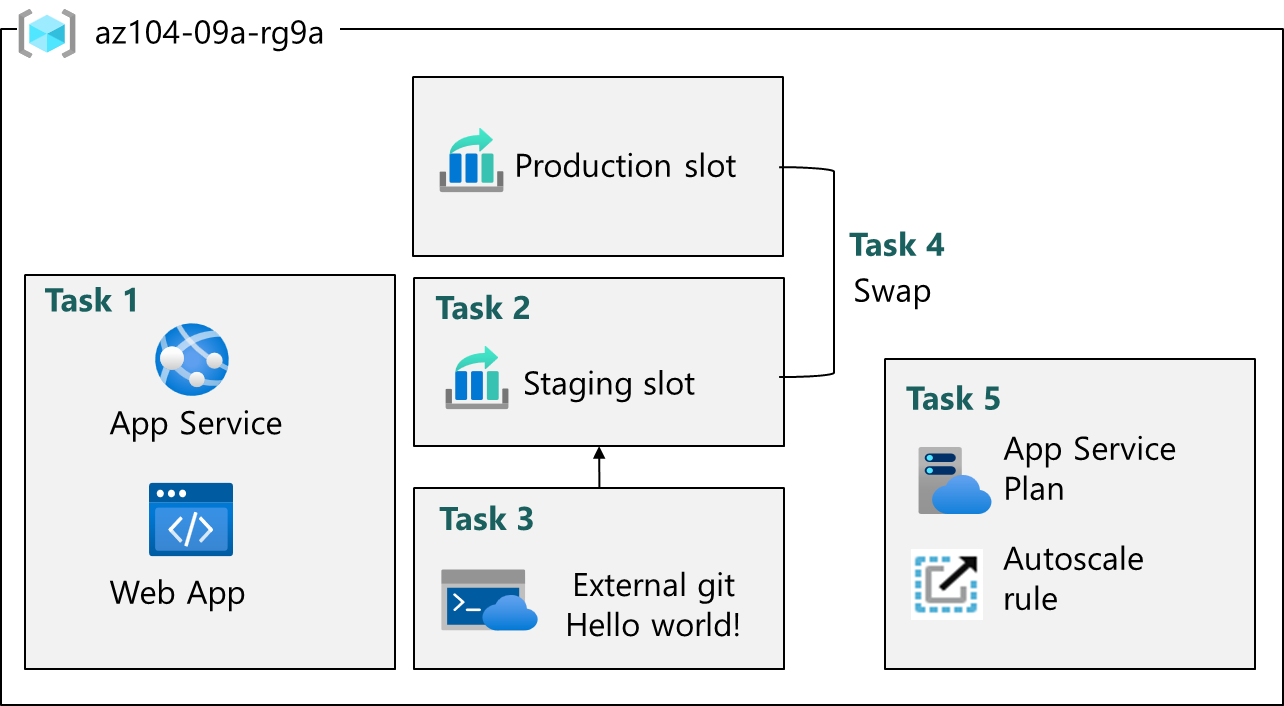
Tasks
- Task 1: Create an Azure web app
- Task 2: Create a staging deployment slot
- Task 3: Configure web app deployment settings
- Task 4: Swap the staging slots
- Task 5: Configure and test autoscaling of the Azure web app
Task 1: Create an Azure web app
In this task, you will create an Azure web app. Azure offers Azure App Services, which is a Platform As a Service (PAAS) solution for web, mobile, and other web-based applications. Azure Web Apps, one type of Azure App Services offerings, can be used to run websites for most runtime environments, such as PHP, Java, .NET, and more. If you need support for more than one runtime environment, you can use App Services with Docker containers. The SKU that you select determines the amount of compute, storage, and features that you receive with the web app.
-
Sign in to the Azure portal -
https://portal.azure.com. -
Search for and select
App services. -
Select + Create, from drop-down menu, Web app. Notice the other choices.
-
On the Basics tab of the Create Web App blade, specify the following settings (leave others with their default values):
Setting Value Subscription the name of the Azure subscription you are using in this lab Resource group az104-rg9(If necessary, select Create new)Web app name any globally unique name Publish Code Runtime stack PHP 8.2 Operating system Linux Region East US Pricing plans accept the defaults Zone redundancy accept the defaults -
Click Review + create, and then Create.
Note
: Wait until the web app is created before you proceed to the next task. This should take about a minute.
-
On the deployment blade, click Go to resource.
Task 2: Create a staging deployment slot
In this task, you will create a staging deployment slot. Deployment slots are features of certain App Service plans that enable you to perform testing prior to making your app available to the public (or your end users). After you have performed testing, you can swap the slot from development or staging to production. Many organizations use slots to perform pre-production testing. Additionally, many organizations run multiple slots for every application (for example, development, QA, test, and production).
-
On the blade of the newly deployed web app, click the Default domain link to display the default web page in a new browser tab.
-
Close the new browser tab and, back in the Azure portal, in the Deployment section of the web app blade, click Deployment slots.
Note
: The web app, at this point, has a single deployment slot labeled PRODUCTION.
-
Click + Add slot, and add a new slot with the following settings:
Setting Value Name stagingClone settings from Do not clone settings -
Select Add.
-
Back on the Deployment slots blade of the web app, click the entry representing the newly created staging slot.
Note
: This will open the blade displaying the properties of the staging slot.
-
Review the staging slot blade and note that its URL differs from the one assigned to the production slot.
Task 3: Configure web app deployment settings
In this task, you will configure web app deployment settings. App Services can be configured with deployment settings to allow for continuous deployment from your repo of choice, or by using FTPS credentials and other automation. This ensures that the app service has the latest version of the application running.
-
On the staging deployment slot blade, in the Settings section, select Configuration, and then select General settings.
Note: Make sure you are on the staging slot blade (instead than the production slot).
-
On the Settings tab, in the Source drop-down list, select External Git.
-
In the repository field, enter
https://github.com/Azure-Samples/php-docs-hello-world -
In the branch field, enter
master. -
Select Save.
-
From the staging slot, select Overview.
-
Select the Default domain link, and open the URL in a new tab.
-
Verify that the staging slot displays Hello World.
Task 4: Swap the staging slots
In this task, you will swap the staging slot with the production slot. Swapping a slot allows you to use the code that you have tested in your staging slot, and move it to production. The Azure portal will also prompt you if you need to move other application settings that you have customized for the slot. Swapping slots is a common task for application teams and application support teams, especially those deploying routine app updates and bug fixes.
-
Navigate back to the blade displaying the production slot of the web app.
-
In the Deployment section, click Deployment slots and then, click Swap toolbar icon.
-
On the Swap blade, review the default settings and click Swap.
-
Click Overview on the production slot blade of the web app and then click the Default domain link to display the web site home page in a new browser tab.
Note: Copy the Default domain URL you will need it for load testing in the next task.
-
Verify the default web page has been replaced with the Hello World! page.
Task 5: Configure and test autoscaling of the Azure web app
In this task, you will configure autoscaling of Azure web app. Autoscaling enables you to maintain optimal performance for your web app when traffic to the web app increases. For most applications, you might know of specific metrics in the app that should cause it to scale. This could be CPU usage, memory, or bandwidth.
-
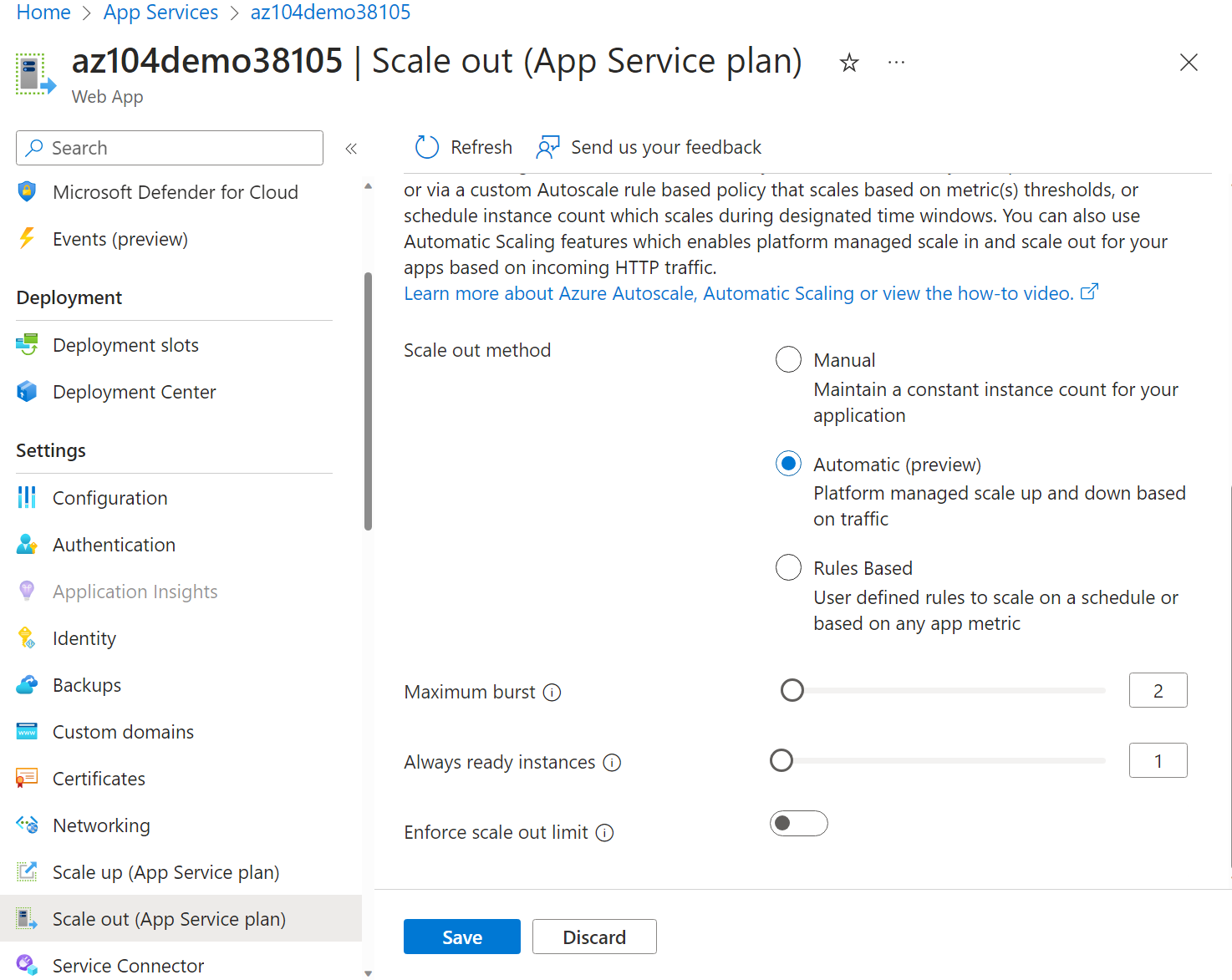
On the blade displaying the production slot of the web app, in the Settings section, click Scale out (App Service plan).
-
From the Scaling section, select Automatic.
-
In the Maximum burst field, select 2.
-
Select Save.
Note
: In a production environment, organizations often select Rules Based and configure rules around specific metrics or Application Insights components that trigger autoscaling.
-
On the blade displaying the production slot of the web app, select Diagnose and solve problems.
-
In the Load Test your App box, select Create Load Test.
- Select + Create and give your load test a name. The name must be unique.
- Select Review + create and then Create.
-
Wait for the load test to create, and then select Go to resource.
-
From the Overview | Add HTTP requests, select Create.
-
For the Test URL, paste in your Default domain URL. Ensure this is properly formatted and begins with https://.
-
Select Review + create and Create.
Note: It may take a couple of minutes to create the test.
-
Review the test results including Virtual users, Response time, and Requests/sec.
-
Select Stop to complete the test run.
Key takeaways
Congratulations on completing the lab. Here are the main takeaways for this lab.
- Azure App Services lets you quickly build, deploy, and scale web apps.
- App Service includes support for many developer environments including ASP.NET, Java, PHP, and Python.
- Deployment slots allow you to create separate environments for deploying and testing your web app.
- You can manually or automatically scale a web app to handle additional demand.
Cleanup your resources
If you are working with your own subscription take a minute to delete the lab resources. This will ensure resources are freed up and cost is minimized. The easiest way to delete the lab resources is to delete the lab resource group.
- In the Azure portal, select the resource group, select Delete the resource group, Enter resource group name, and then click Delete.
- Using Azure PowerShell,
Remove-AzResourceGroup -Name resourceGroupName. - Using the CLI,
az group delete --name resourceGroupName.